

A few weeks ago, I reposted my colleague’s notebook that shows how to deploy a Data Agent in just 15 minutes.
Today, I put it to the test myself, and of course, I wrote down the results in this blog post.
First things first: major kudos to my colleague Sjoerd Leensen for creating this awesome starter kit. Let’s #MakeAgentsSmart.
But before we dive in… what actually is a Data Agent?
“A data agent is an AI‑powered, conversational assistant that allows users to interact with enterprise data in plain language and receive real‑time, governed insights—without needing to write SQL, DAX, or KQL.
In Microsoft Fabric, a data agent uses generative AI and large language models to translate natural‑language questions into secure queries across multiple data sources such as lakehouses, warehouses, KQL databases, Power BI semantic models, and ontologies”.
Cool! In simple terms, a Data Agent is like an AI sidekick, just like Copilot or ChatGPTT, but with one big superpower: it’s directly connected to your data platform.
So instead of guessing, it gives answers based on your real data. Smart, fast, and actually useful.
Let’s dive into the notebook.
The Modular Fabric Data Agent Generator will walk you through the entire setup. It does the following:
- Installs all required Python packages
- Creates a demo Lakehouse
- After it’s created, make sure to reconnect to the demo Lakehouse
- Creates the schemas for the fake HR data
- Generates the fake HR dataset
- Builds the Data Agents on top of that data and deploys them
In the demo notebook, the first steps are pretty straightforward. You import some packages, spin up a Lakehouse for storage, and think about what data you want your agent to use.
For this step, you can of course use ChatGPT to help you design the schemas for your agent, It’s perfect for that.
After these basics, the next steps become more important.
First, you generate the fake HR dataset for your HR insights. You start by creating the dimensions, then simulate an employee lifecycle with events, and finally generate the fact tables that tie everything together.
Below is the HR model we’ve defined to generate:

Note that for the demo set, the following simulation settings are applied:
- NUM_INITIAL_EMPLOYEES = 1500
- DAILY_HIRE_PROBABILITY = 0.6
- ATTRITION_PROBABILITY = 0.001
- START_DATE = datetime(2024, 1, 1).date()
- END_DATE = datetime(2025, 12, 31).date()

In total, the generator creates a population of 1,500 employees, simulated over a 2‑year period, to fill all the relevant facts and dimensions.
Once the dimensions are set, the employee lifecycle is generated, periodic facts are created, and the final transaction tables are produced. All of this data is written straight into the Demo Lakehouse, and the best part? It’s ready to use in about 5 minutes!
The final step is to create and deploy your Fabric Data Agent on top of the freshly generated data.
To interact with Fabric Data Agents through code, you’ll need the Python package
fabric-data-agent-sdk
(official docs: https://learn.microsoft.com/en-us/fabric/data-science/fabric-data-agent-sdk)
This SDK already comes with convenient, ready‑to‑use functions — like creating or deleting a Data Agent — so you don’t have to reinvent the wheel.
So, to create a Data Agent, you simply do something like this:
from fabric_data_agent_sdk import DataAgentClient
client = DataAgentClient()
agent = client.create_agent( name="HR Insights Agent")
print("Agent created:", agent)
Second we need to give instructions to the agent:
client.update_configuration(instructions)
These instructions are crucial because they guide and shape how your Data Agent behaves.
Think of it as giving your agent a mini rulebook.
You can include things like:
- Add source information
- Describe the data the agent can use
- Provide example queries
- Tell it explicitly what it should do
- …and what it absolutely should not do
Once your instructions are set, you simply connect the right datasource:
data_agent.add_datasource(lakehouse_name, type="lakehouse")
once done you’ll publish the agent:
agent.publish()
and in less than a minute, you’re data agent is ready for use.
So Lets start a chat!

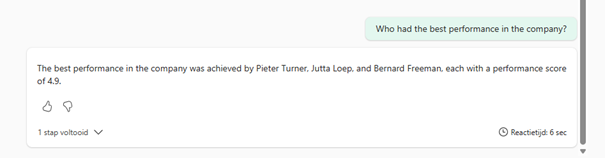
This is a great example of how fast this work, and you’ll see how much potential this has.
Let’s dive info more functionalities soon! #MakeAgentsSmart and put them to work!